 |
|

|
clearString neatComponents
|
|
clearString neatComponents Installing - Using a Virtual Machine |

| ||
| How-to Resources | |
Installing - Using a Virtual Machine | ||
| |
Installing - Using a Virtual Machine
Important:
If you develop an application in a temporary environment you will be able to easily export it and transfer it so your work is not lost.
Read about app/site export here...
Create your own Virtual Machine
If you do not have a Windows 2012R2, Windows Home Server, Windows 10 pro or other real computer available, then you can use Virtualization to create a multi-domain test environment on your work-station. It is a straightforward procedure.
The virtual machine licenses are permanently free, and Microsoft provide an extended free trial of their server editions if you need an operating system to install.
There are three main providers of Virtual Machine (VM) software: Virtualbox, VMWare and Microsoft.
Method
The procedure is the same in all cases:
- Take a host machine that has an Internet connection.
- Have available an operating system disk to create the working virtual machine.
- Install the VM software.
- Use the VM software console to create a new Virtual Machine.
- Set the machine to have a fixed IP address
- Download and install neatComponents on the new VM
Operating system
If you have an available suitable Windows operating system installation disk, or ISO, you can use that.
Otherwise you will need to purchase or download a operating system for use on the Virtual machine you are about to create.
Use a free operating system trial
Microsoft make operating system ISO-files (disk images) available for extended trials:
Download Microsoft Windows Server trial here
Download Microsoft Windows 11 here
Tips:
1.Microsoft allows anyone to download Windows 11 for free and install it without a product key. It’ll keep working for the foreseeable future, with only a few small cosmetic restrictions. Learn more...
2. Windows 10 will be available until finally withdrawn by Microsoft: here...
You may install neatComponents onto any of the above - it installs and works the same.
Option 1
Working with VirtualBox
VirtualBox is considered by many people to be the easiest VM system to use.
Download and install VirtualBox for Windows hosts from their downloads page and install the software.
Follow the default settings. When the console opens, create a New machine using the operating system ISO you obtained above..
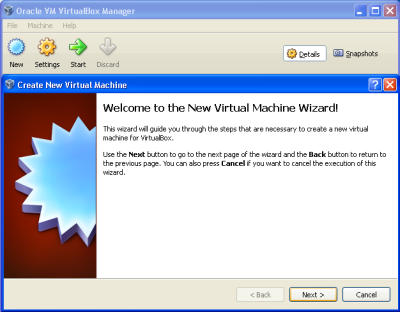
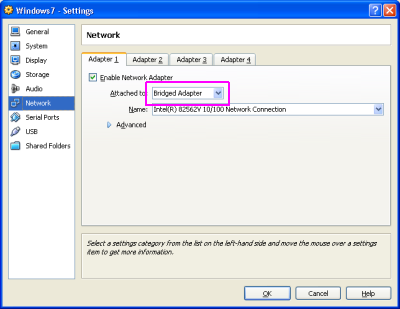
When the Wizard is complete, check in the 'Settings' for the machine that the 'Network' is set to 'Bridged Adapter'.
Start your new Virtual Machine and it will open in its own browser window.
Use the on-screen prompts to make the screen full size, and give the VM your mouse and keyboard.
Then download and install neatComponents in the normal way.
Tips
Remember - just like a real machine - set the Windows firewall on your new machine to allow HTTP traffic on port 80, and you must set this VM to have a fixed IP address on your LAN. The IP address must be unique, and not the same as the host-machine.
Option 2
Working with VMware
VMware provide a similar experience to VirtualBox, however unless you are familar with VMware products, most users find VMware to be more complex to configure.
Download and install VMware Server for Windows hosts from VMware and install the software.
Follow the default settings, and generally proceed as for Option 1.
Option 3
Working with Windows Virtual Machines
Microsoft provide several options for VM installations depending on the host operating system.
You can learn more about Microsoft options here
Microsoft provide Microsoft Windows Server as a free trial VHD (Virtual Hard Drive) that can be installed onto a Microsoft VirtualPC Click here for more details
Prepare for your Installation
Install neatComponents
Once you have access to the server you can follow the normal neatComponents installation procedure.
Copyright © 2026 Enstar Systems Inc. All rights reserved |