neatComponents provides a complete Windows-based hosting environment with integrated codeless web development software from one download. This means that normally you install neatComponents on one machine and then do everything else from other machines either across your Local Network, or more commonly across the Internet.
In this article we will explain about accessing your neatComponents server so that you can get started creating sites and developing them.
Scenario 1 - Working on the same machine
Scenario 2 - Working across the LAN
Scenario 3 - Working across the Internet - This is the normal method of working
Scenario 1 - Working on the same machine
You would not normally work on a website from the neatComponents machine itself - once it is installed you would treat that machine as a dedicated appliance. Every site you create and all other manipulations will be done using your web-browser to access the neatComponents Site Manager.
But, for very small scale use, and for testing - so you can get started with the site manipulation - you can make an exception, and work on the server itself. So, on the machine you actually installed onto, return to the nC Server Manager.
Getting back to the Server Manager
If you close the 'Server Manager' you can get back to the Root Web Site by going to Windows Start-menu, and selecting Root Web Site from the neatComponents entry.

You can also can return to it by browsing to http://local.neatcomponents.com in your web browser. You will need to log in again using the email address and password that you created during the install process.
Scenario 2 - Working across the LAN
By working on the LAN we mean installing neatComponents on one machine and then accessing it to create and work on websites from another machine on your local area network. You might be doing this to learn how to assign domain names to your website, or to simulate working across the Internet without having to set up DNS records. This is also how you would use neatComponents for Intranet use.
An important concept
neatComponents creates a complete hosting environment for an unlimited number of sites and applications. They are all hosted on the same machine. neatComponents uses the domain name to determine what site to respond with. This means that you cannot 'simply' point your web browser at the IP address of the server. You always must browse to a domain name - http://www.example.com
If you want to access the Server Manager from the host machine itself you can browse to a reserved address: http://local.neatcomponents.com but that address only works on the machine itself. You need to make a minor configuration adjustment to access the Server Manager from across the LAN.
Before you start - set the IP Address
The neatComponents machine, real or virtual, must have a fixed IP address on your LAN. New Windows installations are normally set to DHCP, or dynamic IP address, which is not suitable for hosting your own websites. This page explains how to set a fixed IP address.
Accessing the Server Manager across the LAN
If you want to browse to your neatComponents Server Manager from another machine on your LAN - then the local solution without setting public DNS records, is to use the 'Hosts' file on the machine you are testing from on your LAN. This will tell the web browser on that machine where to find the Server Manager.
Method
First: add a domain name to the Server Manager that it will listen to from across the LAN, for example: neatcomponents.lan

Open the Server Manager on the host machine by browsing locally to http://local.neatcomponents.com
or
By going to Windows Start-menu, and selecting Root Web Site from the neatComponents entry.
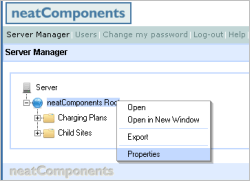
Right-click on the Root, and in Site Properties select the Domains-tab, and
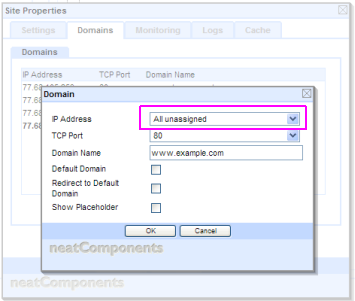
Add a new Domain Name, for example: neatcomponents.lan
Set to listen on the LAN IP Address of the machine - 192.168.2.87, in this example.
The neatComponents Server Manager will now respond to requests for http://neatcomponents.lan
You now need to tell any machine on the LAN where to find http://neatcomponents.lan
'A-Records'
Normally you enable access to the websites you create in neatComponents by setting the 'A-Record' in your public domain 'DNS' to point to your neatComponents server. The 'A-Record' points to the IP Address of the website for a given domain name, and is how any web browser, anywhere in the world, knows where your website is.
Simulate an A-Record
You can simulate having an A-Record for local or testing purposes by using the 'Hosts' file on the machine you are browsing from. Your web browser (Internet Explorer, Safari, Firefox, etc) locates websites by checking the DNS record for the domain, however before the browser looks as an external DNS server it always checks its own Hosts file to see if there is a fixed address for a given domain.
You can use the Hosts file to force your browser to go to a specific IP address for your domain, even if you have not created a public DNS A-record. Naturally this will only work from your machine, but it is a quick and easy way to test access.
Note:
Anti-virus software, such as Norton, may by default, prohibit changes to the Hosts file. You will need to adjust the 'exclude' settings in your A-V software to allow.
Windows
The Hosts file is a special file located here on a Windows computer:
C:\WINDOWS\system32\drivers\etc\hosts

Open the Hosts file in Notepad, and make an entry similar to the one highlighted above
192.168.2.87 neatcomponents.lan
using the IP address of the machine that neatComponents is installed on in place of 192.168.2.87
The process is similar in Linux and Mac systems.
Linux and Mac OSX
The hosts file is usually found in: /etc/hosts
Now, when you browse to http://neatcomponents.lan FROM THAT MACHINE ONLY you will be directed to your new Server Manager, just as if you were browsing across the Internet. If you want to browse from more than one machine then you would need to set the Hosts file on each machine. We don't recommend doing that - you should set proper DNS records as explained below.
When you have finished testing, remember to remove that line from your Hosts file to avoid future address conflicts.
Accessing an individual site across the LAN
In a similar manner you can use the Hosts file to access a site you have created in your neatComponents Server Manager.
In the Server Manager-tree, Child Sites entries, use the individual site's 'Site Properties' dialog, to set the domain name, in this case, www.example.com to listen on the Server Manager's local LAN IP address, in this case 192.168.2.87

Next, just as in the previous example, you must edit the Hosts file of the local machine you are browsing from by adding in a line telling the browser where to locate www.example.com

Now, when you browse to http://www.example.com FROM THAT MACHINE ONLY you will be directed to your new website, just as if you were browsing across the Internet.
Scenario 3 - Working across the Internet
This is the normal method of working.
As explained above, your web browser (Internet Explorer, Firefox, etc) locates websites by checking the DNS record for the domain.
Here we explain how to set the Server Manager site to permit access from a different machine across the Internet by following the instructions on the Server Manager page (highlighted below):
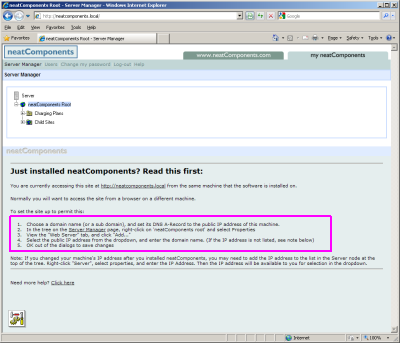
- Choose a domain name (or a sub domain), and set its DNS A-Record to the public IP address of this machine.
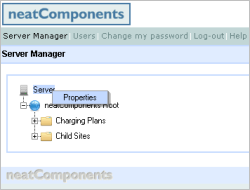
- In the tree on the Server Manager page, right-click on 'neatComponents root' and select Properties
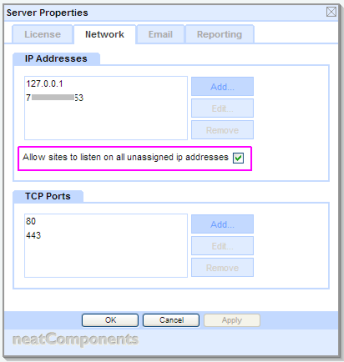
- View the "Web Server" tab, and click "Add..."
- Select the public IP address from the dropdown, and enter the domain name.
- OK out of the dialogs to save changes
Choose a domain name
This is the domain name that you want to use for managing the server across the Internet. It is not the domain name of one of the sites. This domain name is used like the http://local.neatcomponents.com, and neatcomponents.lan examples above: e.g. hosting.example.com
How to set your public domain 'DNS'
This page - A DNS Primer - explains how to set up domain names if you are unfamiliar with the process. The domain name/s must be set to 'Point to...' the public facing IP address of the Internet connection that the neatComponents machine is using.
Adjust the Server Manager
First: add a domain name to the Server Manager that it will listen to from across the Internet, for example: hosting.example.com

Open the Server Manager on the host machine by browsing locally to http://local.neatcomponents.com
Right-click on the Root, and in Site Properties select the Domains-tab, and
Add the Domain Name: hosting.example.com
Set to listen on the LAN IP Address of the machine - 192.168.2.87, in this example.
The neatComponents Server Manager will now respond to requests for http://hosting.example.com
Simulating an A-Record
You can simulate having an A-Record for testing purposes by using the 'Hosts' file on the machine you are browsing from. Your web browser (Internet Explorer, Safari, Firefox, etc) locates websites by checking the DNS record for the domain, however before the browser looks as an external DNS server it always checks its own Hosts file to see if there is a fixed address for a given domain. This method is detailed above.
You can now access both the Server Manager from across the Internet.
Advanced Configuration Advice
Working behind NAT
The configuration examples on this page assume that the machine that neatComponents is installed on is on your LAN, and is using Port-forwarding or Network Address Translation (NAT) on your Router or Firewall to transfer inbound connections from your public-facing IP address to the Local (LAN) IP address of the neatComponents machine.
If your neatComponents is installed on a machine with direct Internet access - for example, at a co-location or server hosting company, then you would use that public facing IP address in the Domain IP Address in the examples above. This page explains more about working with NAT.
Server Access and Site Access
You need to set a domain or sub-domain to access the Server Manager as explained above - you also need a separate domain name for each website hosted on the server. All domains will use the same IP address (the public-facing IP address of the neatComponents server) in their A-Record. neatComponents uses the actual domain name to differentiate and know which site to serve against each request.