 |
|

|
clearString neatComponents
|
|
clearString neatComponents Emailing form data |

| ||
| Application Development | |
Emailing form data | ||
| |
This section of the Tutorial explains how to have an email sent each time a record is added to the Table - each time a visitor to your example site completes the form we just made. it also serves as an introduction to Events and Actions. Actions cause things to happen. Events determine when Actions occur. Together they are the foundation of all process management and are key to app building and all interactions
Method: Events and Actions
On your example website, select and open the Table (in the Admin section of the Layout Manager) and mouse-over the Toolbox. Select 'Configure Table' in the gear/toolbox and the Table will reopen in the Configuration view. This time, select the Events-tab, and as shown below...
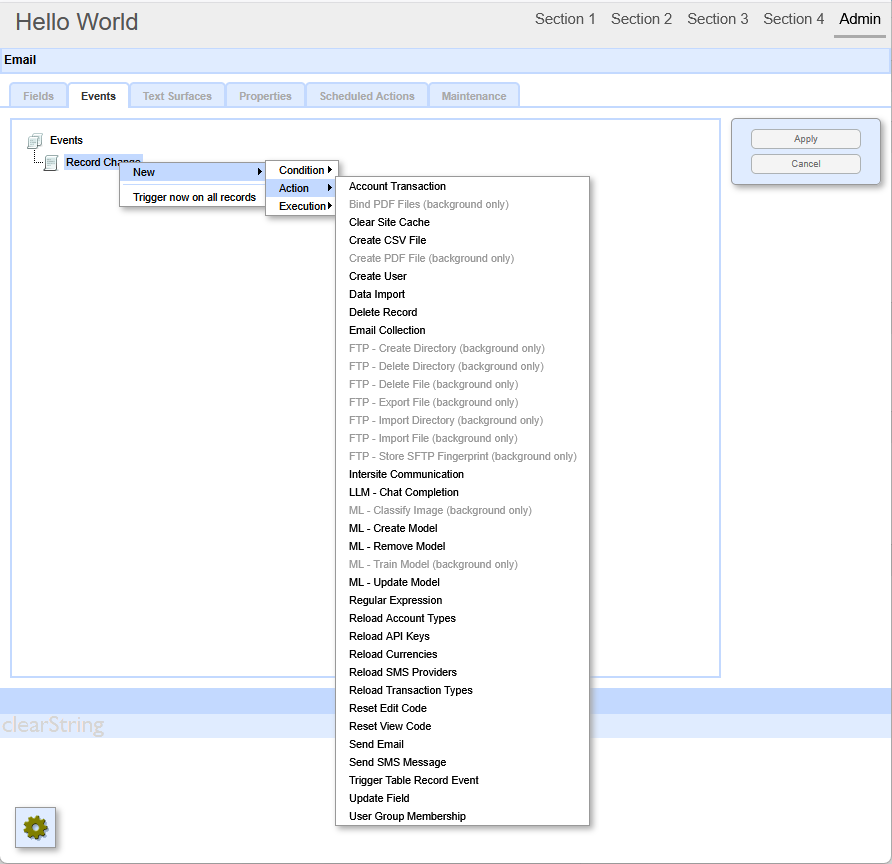
Right-click on Record Change, and select New, then Action, then Send Email from the menu, the menu will collapse to the Send Email Event (which can be renamed) - and click [Apply].
.png)
The Events display will now show the 'Email' in the Events-tree.
Right-click on the Event, and select Properties.
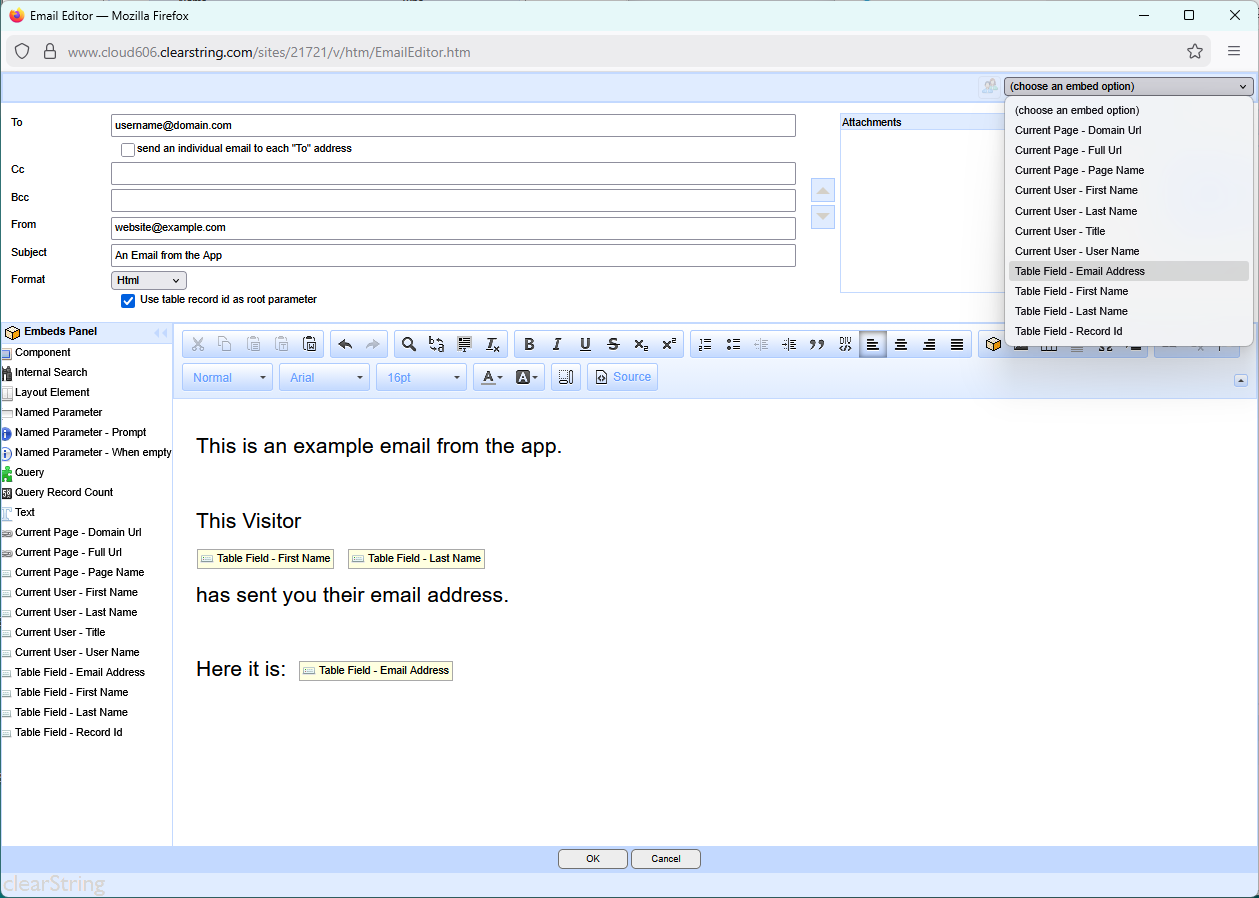
A dialog similar to the one below will open in a new window: the Email Editor.
Configure the emailer
The Email Editor allows you to construct the email that is sent by the website. You can directly enter information, and also embed data collected by the form.
For our simple example, we will create an email that sends the form data to an imaginary someone in Support at your domain.
Some entries are made manually and some use the data that you collected on the Form by using the Embed Option selector in the top-right corner - highlighted on the image above.
Outline
This 'Event Email' example will send an email to you giving you the Fist Name, Last Name and Email address of the visitor to your form on the website. In working with the emailer you will see that some entries are fixed, some use embedded data from the form, plus some boiler-plate text to make the finished email look correct. The email we make will be 'HTML' so it can be a fully formatted email, but it could be Plain Text..
Method:
At the To: field write in the email address the email should be sent to - your own, for example, myname@domain.com
The Subject : will be An Email from the App.
Advanced configuration
You can read about advanced sending configuration options here...
We want the email to appear as if it has come from the Visitor, using the information collected from the website form. So at the From: insert the cursor, then use the [choose an embed option] from the menu at the top of the Editor, and select 'Form Field - Email Address', otherwise set it to come from an appropriate email address you control such as no-reply or website
Similarly, in the body of the email we mix directly entered texts with embedded form information to construct the email. The Form Field options refer to the information entered on the Form.
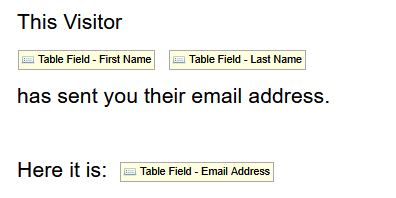
So, for example your emailer should look like this. Each of the highlighted entries is an Embed:
When you have completed the email, click [OK] back to the Event-tab.
At the main Events-tab you must click the 'Apply' button in the right-column to confirm the configuration changes you have made if you did not do so earlier, otherwise your changes will be lost.
.png)
You can now test your form by logging out, and visiting the form again, and cause an email to be sent to the test address.
Note that if you have not yet configured the email server in your installation, or if you are using a free Cloud trial then no email will be sent.
 Moving on - The Source - Query - View model of data management
Below the line
Email Sending - Site Configuration
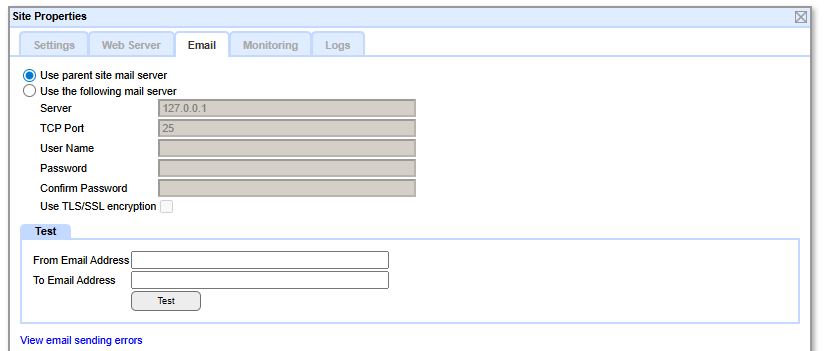
An app or site will by default use the neatComponents server email configuration set out below.
If that service is not available in your environment, or for any other reason, you can set your own email server configuration at the top node of the app/site in the Layout Manager.
Email Sending - Server Configuration
The clearString::neatComponents system installed on prem includes an SMTP service to send out email messages direct 'server-to-server'. That provides the email service to all sites and apps installed on that server
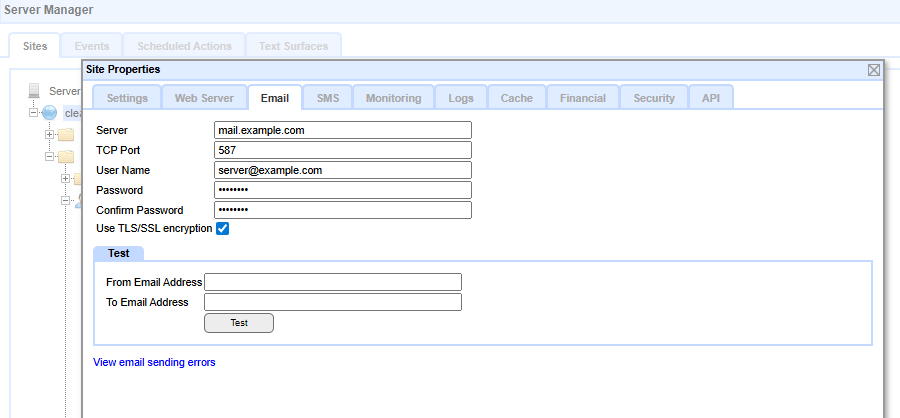
You would normally configure the system to send email messages to your corporate mail-server or your Internet Service Provider's email service for onward delivery.
You configure this setting at the main
Server Manager | Globe node (right-click) - Email-tab
Mail Server: mail.example.com
Mail Server Port: 587
You may also add SMTP Authentication (User Name & Password) and change the SMTP TCP-port if required by your ISP.
Enable 'Use TLS/SSL encryption' unless not required by your ISP or corporate mail server.
Default settings
If your version of Windows includes an SMTP server (on 127.0.0.1 - localhost) then clearString uses that by default.
Routing email
This example uses just one email recipient to receive all submissions.
You can readily create submission forms where the email gets routed to selected recipients.
Read about Routing Email here...
Troubleshooting email
Creating your first app In this section |
|
Creating your first app
We're getting an introduction to In this section: |
|
 What are we learning here?
Copyright © 2026 Enstar Systems Inc. All rights reserved |