 |    | |
|
|

| ||
| How-to Resources | |
Configuration | ||
| |
This blog application is a basic example of the type of application development that can be created by anyone using clearString - all with drag & drop building and dialog-box config.
Remember:
As well as being a working usable blog system this site is intended to be used as a self-discovery tutorial, for you to download, install, pick apart, copy and clone to make your own unique applications.
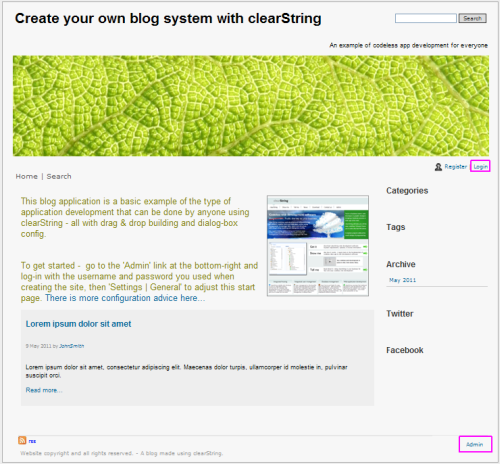
It is important to understand that everything you see, including the Admin pages and all the settings controls were created using the clearString neatComponents system. All without coding or scripting. No cheating. You can use this example yourself as a personal or company blog, secure in the knowlege that you have total control over access and data.
You can also use it as a learning resource to teach yourself how to build using this software. This is a nice blog, but you can adapt it, or use it as a foundation for your own developments .
Simple adjustments
General
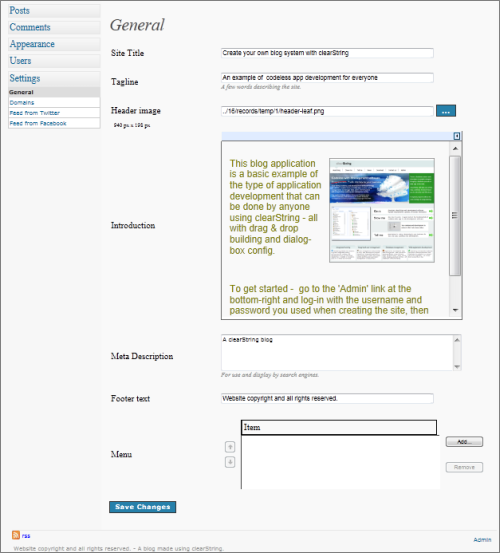
To get started - log-in with the username and password you used when creating the site, then go to the 'Admin' link at the bottom-right and then 'Settings | General' to adjust the start page. After making a change click the [Save changes] button at the bottom of the page.
Site Title
Change the text you want to use for the Site Title currently 'Create your own blog system with clearString'
Tagline
Change the text you want to use for the Tagline currently 'An example of codeless app development for everyone'
Header image
Change the header image to any other one that is 940 x 198 pixels.
Click the [...] button. The File Manager will open. Under 'Upoad New File', click the [Browse] button and select the file from your local drive, and click [Open]. The click the [Upload] button. When the file has been uploaded, click [OK]
Introduction
You can change the contents of the Introduction panel by typing directly onto the space available. You can access the full Text Editor by clicking the small arrow in the top-right corner. Clicking again will hide the Text Editor.
Text Editor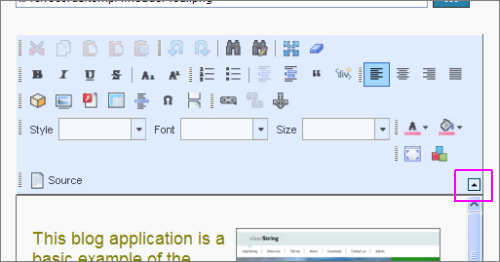
The text Editor functions in a similar way to a normal 'word processor'.
You will find detailed information on using the Text Editor in 'The Guide'.
Blog postings
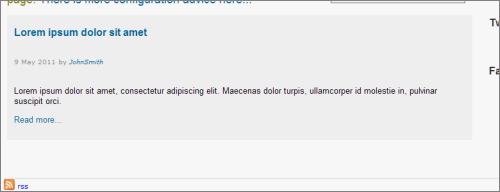
You will see that there is a place-holder blog posting already made - so you will see how things will work. We suggest you make an experimental posting, so you can see how - and then 'hide' the postings before 'going live'.
Using the blog
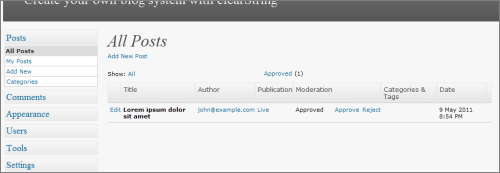
Your clearString example blog works just the same as any other blog software - the only difference is that you control where the data is stored, who has access to it - and how the blog is constructed, of course.
To make a posting
Open the 'Blog Administration' and go to the Posts section of the left-menu. There you can 'Add New', as well as edit and moderate existing postings. The posting is made in the left column of the posting page Title, Body and Summary.
Status
Allows you to control whether the posting is Draft, Hidden or Live.
Publish
Allows you to control when the posting will become visible. This can be set to some future time (for example, for a future Press Release or announcement). Setting to a date in the past will cause the posting to be visible 'now'.
Comments
Sets whether you allow 'comments'.
Author
Allows you to select a differnent 'author' for the posting, and gives access to the User manager.
Sticky
Sets whether the posting is 'sticky' or not.
Categories & Tags
Allows you to assign a category or tag which will them be reflected in the tag-cloud shown on the front page of the blog.
Tweet
Allows you to enter a short tweet update to be posted automaically to your Twitter account when the blog posting is made.
rss
This gives the URL of the RSS feed of your postings
Other settings
There are detailed instructions on setting the Domain, and setting-up your Twitter and Facebook feeds in the Admin section.
Additional Resources |
| Blog application |
Copyright © 2026 Enstar Systems Inc. All rights reserved |